12
What Is DNS and How Does It Actually Work? A Beginner's Guide.
Ever broken your website at 2 a.m. because of DNS? Learn exactly how DNS works, what all those records mean, and how to fix common mistakes — in plain English.
What Is DNS and How Does It Actually Work? A Beginner's Guide
By a tech blogger who has broken their own website more times than they'd like to admit.
I remember the exact moment I realized I had no idea how DNS worked.
It was 2 a.m. I had just migrated my personal blog to a new hosting provider. Everything was set up — files uploaded, database connected, SSL certificate pending — and I was feeling pretty good about myself. Then I typed my domain name into the browser, hit Enter, and got a blank screen with one of those cryptic error messages: "Server IP address could not be found."
I panicked. I refreshed. I panicked more. I called my friend who knows networking stuff (shoutout to Zain). He calmly asked, "Did you update your DNS records?"
I said, "My what?"
That was the beginning of a very long night — and honestly, the beginning of me actually understanding how the internet works at a basic level. If you've ever wondered why changing your domain settings takes so long to "kick in," why some websites load for some people but not others, or what those letters "A record," "CNAME," and "TTL" even mean — this guide is for you.
Let's break DNS down in a way that actually makes sense.
First, Let Me Paint You a Picture
Imagine the internet as the world's largest city. Every single website has a home address — a specific location where it "lives." That address is called an IP address, and it looks something like this: 142.250.190.78.
Now, nobody memorizes street addresses. You search for "nearest pizza place" or type "maps.google.com" and your phone figures out where to go. That's essentially what DNS does for the internet.
DNS stands for Domain Name System. It's basically the internet's phone book — or more accurately, its GPS. You type in a human-readable name like google.com, and DNS translates that into the numeric IP address that computers actually use to find each other.
Without DNS, you'd have to memorize that Google lives at 142.250.190.78 and Facebook lives at 157.240.241.35. Nobody has time for that.
So What Actually Happens When You Type a URL?
This is where it gets interesting, and honestly, kind of mind-blowing.
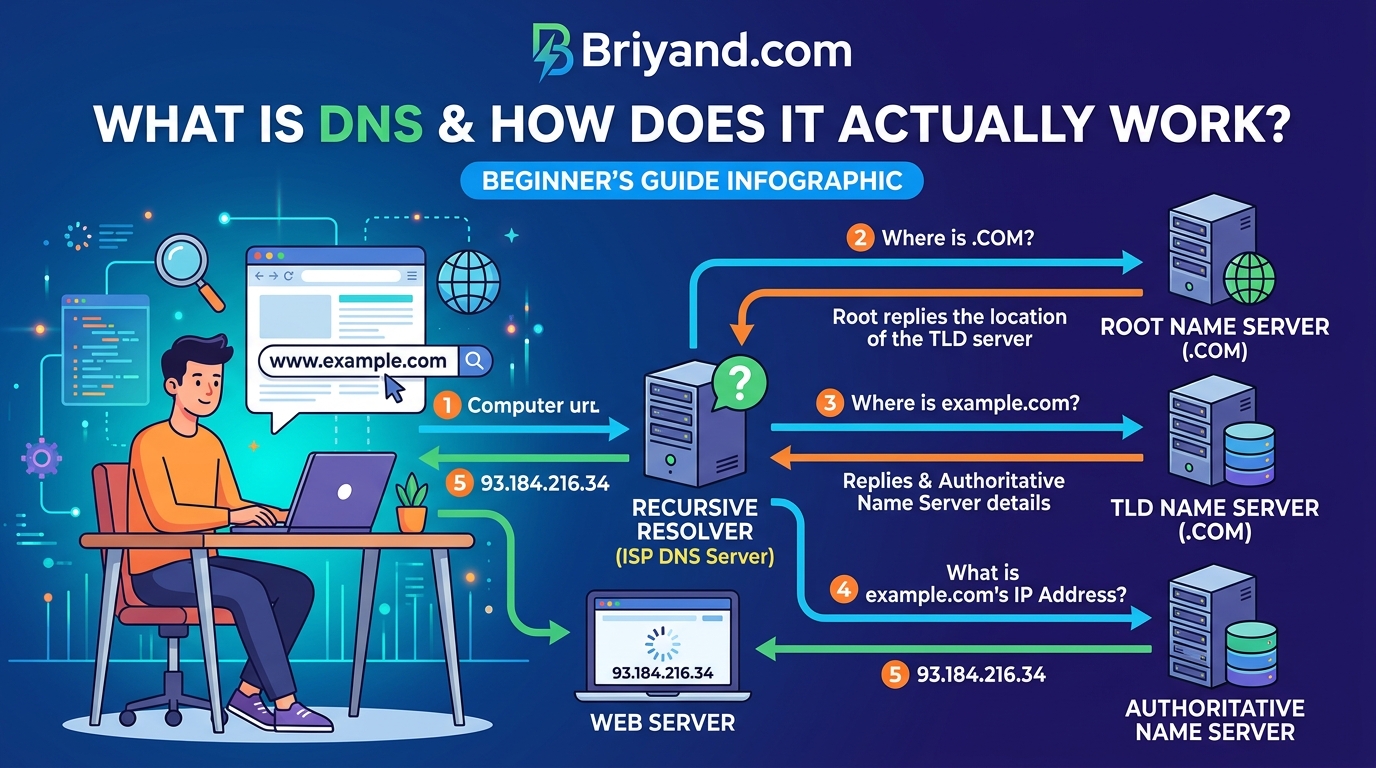
When you type www.yourfavoritesite.com into Chrome or Firefox and hit Enter, a whole series of events happens in milliseconds. Let me walk you through it step by step.
Step 1: Your Browser Checks Its Own Memory First
Before anything else, your browser checks its local cache. If you've visited yourfavoritesite.com recently, your browser might already know the IP address from last time and skips the whole lookup process. This is why revisiting a site often feels faster.
If the answer isn't cached, it moves on.
Step 2: Your Operating System Gets Asked
Next, your computer's operating system (Windows, macOS, Linux) checks its own cache. Every OS keeps a small DNS cache so it doesn't have to look things up constantly.
On Windows, you can actually see this cache by opening Command Prompt and typing:
ipconfig /displaydns
On Mac or Linux, the process is similar through Terminal. It's a surprisingly fun thing to look at — you'll see dozens of domains your computer already knows about.
If the OS doesn't have it either, the real DNS journey begins.
Step 3: Your Router Gets Involved
Your home router (that box from your ISP with the blinking lights) also maintains a small DNS cache. Your computer asks it, "Hey, do you know where yourfavoritesite.com lives?"
If the router knows, great. If not, it forwards the question to the next level.
Step 4: The DNS Resolver — The Real Workhorse
Here's where the heavy lifting actually starts.
Your ISP (like Comcast, AT&T, or whatever local provider you use) runs something called a DNS resolver or recursive resolver. Think of this as a librarian who doesn't necessarily know every book in the library but knows exactly how to find any book you ask for.
This resolver is configured by default on your internet connection — it's what your router points to when it doesn't know an answer. But here's something a lot of people don't know: you can change which DNS resolver you use. More on that later.
Step 5: The Root Name Servers
Now the resolver has to actually go find the answer. It starts at the very top of the DNS hierarchy — the root name servers.
There are 13 sets of root name servers in the world (operated by organizations like ICANN, NASA, Verisign, etc.), distributed across hundreds of physical machines globally. These root servers don't know the IP address of yourfavoritesite.com, but they know who to ask next.
They tell the resolver: "For .com domains, go talk to these servers."
Step 6: The TLD Name Servers
The resolver now contacts the TLD (Top-Level Domain) name servers — the ones responsible for .com, .org, .net, .pk, and every other domain extension out there.
These servers know which authoritative name servers are responsible for yourfavoritesite.com specifically.
Step 7: The Authoritative Name Server — The Final Answer
The resolver finally reaches the authoritative name server — the one that has the actual, definitive DNS records for yourfavoritesite.com. This is usually managed by your domain registrar (like Namecheap, GoDaddy, or Cloudflare).
This server says: "Yes, I know exactly where that is. The IP address is 45.33.32.156."
Step 8: The Answer Comes Back
The resolver passes this answer back to your OS, which passes it to your browser, which then makes a connection to the web server at that IP address. The website loads.
All of that — every single step — happens in about 20 to 120 milliseconds on a normal connection. Faster than a blink.
DNS Records: What Are All These Letters?
Once I started managing domains myself, I ran into a wall of confusing terminology. Here's what the main DNS record types actually mean, explained like a human being:
A Record (Address Record)
This is the most basic and important one. An A record maps your domain name to an IPv4 address.
Example: myblog.com → 104.21.33.14
If you're pointing your domain to a web host, you're usually editing an A record.
AAAA Record
Same idea as the A record, but for IPv6 addresses (the newer, longer format like 2606:4700:3030::ac43:bdf7). Most modern setups use both A and AAAA records.
CNAME Record (Canonical Name)
A CNAME is basically an alias. Instead of pointing to an IP address, it points to another domain name.
Example: www.myblog.com → myblog.com
This way, if your IP address changes, you only update the A record for myblog.com and the www version automatically follows.
MX Record (Mail Exchange)
This tells the internet where to send emails for your domain. If you've ever set up Google Workspace or Microsoft 365 for a custom email address, you've dealt with MX records. Getting these wrong means your email breaks — ask me how I know.
TXT Record
This one is used for all kinds of verification and security purposes. When Google says "Add this TXT record to prove you own the domain," this is what they mean. It's also used for SPF and DKIM records that help prevent email spoofing.
NS Record (Name Server)
This tells the world which name servers are authoritative for your domain. If you switch from GoDaddy to Cloudflare for DNS management, you update your NS records.
TTL (Time to Live)
This isn't a record type — it's a value on every record. TTL tells resolvers how long (in seconds) to cache the answer before asking again.
A TTL of 3600 means "cache this for one hour."
This is why DNS changes can take time to propagate. If your old record had a TTL of 86400 (24 hours), some DNS resolvers around the world will continue serving the old answer for up to 24 hours while they wait for their cache to expire.
When I was doing that 2 a.m. migration, I didn't know about TTL. My old hosting provider had a 48-hour TTL. I had to wait two full days before everyone could see my updated site. Lesson learned: lower your TTL before making major DNS changes.
The DNS Propagation Wait — Why It's So Annoying
"DNS propagation" is the term for the process of your new DNS records spreading across the internet's many caching resolvers. It's one of the most frustrating parts of managing a website because there's no single moment where it's "done" everywhere.
Different users around the world see different results depending on which DNS resolver they use and what's in that resolver's cache. You might be able to access your new site, but your client in another city gets a 404 error, or vice versa.
Tools that help you check propagation status:
- whatsmydns.net — shows you DNS results from servers in dozens of countries simultaneously
- dnschecker.org — similar, very visual
- dig (command-line tool on Mac/Linux) — for when you want to feel like a hacker
On Mac or Linux, you can run this in Terminal to check your domain:
dig yourdomain.com
It'll show you what the current DNS answer is from your system's resolver, including the TTL remaining on the cached record.
Changing Your DNS Server: Why You'd Want To
Here's something most people never think about: you can change which DNS resolver your computer or router uses.
By default, you're using your ISP's DNS resolver. This works fine, but there are reasons to switch:
Speed. ISP DNS servers aren't always the fastest. Third-party resolvers like Cloudflare's 1.1.1.1 or Google's 8.8.8.8 are often significantly faster, which shaves milliseconds off every page load.
Privacy. Your ISP's DNS resolver logs every domain you look up — every website you visit, essentially. Cloudflare's 1.1.1.1 has a strong privacy-first policy and commits to not logging queries tied to users. That's a meaningful difference.
Reliability. ISP DNS servers occasionally go down. I had a period where my ISP's DNS was flaking out and random websites would just fail to load. Switching to 8.8.8.8 fixed it immediately.
How to change your DNS on Windows:
- Open Settings → Network & Internet → Change Adapter Options
- Right-click your connection → Properties
- Select "Internet Protocol Version 4 (TCP/IPv4)" → Properties
- Choose "Use the following DNS server addresses"
- Enter 1.1.1.1 (preferred) and 1.0.0.1 (alternate) for Cloudflare
- Click OK and restart your browser
On Mac:
- System Settings → Network → Your connection → DNS
- Click the + button and add your preferred DNS IPs
- Click OK and Apply
On your router: If you change it on your router, it applies to every device on your network. Log into your router admin panel (usually 192.168.1.1 or 192.168.0.1), find the DNS settings under WAN or Network settings, and enter your preferred DNS IPs.
I switched my home router to Cloudflare's 1.1.1.1 two years ago and honestly forgot about it — which is the ideal outcome. Things just quietly work a bit faster.
DNS and Security: Things That Can Go Wrong
DNS is powerful, which means it can be exploited. Here are a few things worth knowing:
DNS Spoofing / Cache Poisoning
A malicious actor can sometimes inject false information into a DNS resolver's cache, redirecting users who type a real domain to a fake website. This is how some phishing attacks work at the network level.
The defense is DNSSEC (DNS Security Extensions), which adds cryptographic signatures to DNS records so resolvers can verify the answers are legitimate. Many major registrars and DNS providers now support DNSSEC.
DNS Hijacking
Some ISPs, governments, or malicious routers intercept DNS queries and redirect them — either to show ads, block certain sites, or worse. Using an encrypted DNS protocol like DNS over HTTPS (DoH) or DNS over TLS (DoT) can help prevent this.
Both Chrome and Firefox now support DNS over HTTPS. You can enable it in your browser settings and choose Cloudflare or another provider. Your ISP won't be able to see what domains you're querying.
Typosquatting
Someone registers gooogle.com or amaz0n.com and sets up a fake site. This isn't a DNS vulnerability per se, but it exploits the fact that DNS will faithfully direct you wherever the records point — even to a scam site. Pay attention to what you type.
Common DNS Mistakes (That I've Made Personally)
Let me save you some suffering:
Forgetting to lower TTL before a migration. Always set your TTL to something low (like 300 seconds = 5 minutes) at least 24-48 hours before you plan to switch. Then when you make the change, propagation is much faster. After the switch stabilizes, raise it back up.
Deleting DNS records without knowing what they do. I once deleted what I thought was an unused TXT record. It turned out to be an SPF record for email authentication. Suddenly emails from my domain were landing in spam everywhere. It took me a week to figure out why. Never delete a record without knowing exactly what it does.
Pointing the root domain and www to different places. This causes all sorts of weird behavior where yourdomain.com loads correctly but www.yourdomain.com doesn't (or vice versa). Make sure both are configured consistently.
Not waiting long enough and making more changes. When I didn't see my new DNS records working immediately, I panicked and made more changes, which made diagnosing the problem way harder. DNS changes need time. Check the TTL, calculate when the cache should expire, and wait.
Using the nameservers from the wrong provider. When you register a domain at Namecheap but host DNS at Cloudflare, your NS records need to point to Cloudflare's nameservers. I once forgot to update the NS records at my registrar, so my DNS changes at Cloudflare did absolutely nothing. Everything has to be in sync.
How DNS Plays Into Website Performance
Here's something I didn't appreciate early on: DNS lookup time is part of your website's load time.
Every time someone visits your site for the first time, there's a DNS lookup happening. If that lookup takes 100–200 ms, it adds to the total time before the first byte of your page arrives.
This is why big websites use services like Cloudflare or Amazon Route 53 — not just for the domain management features, but because their globally-distributed DNS infrastructure responds from wherever the user is geographically located. A user in Karachi gets answered by a DNS server near Karachi, not one in New York.
If you run a website on WordPress or any other CMS, moving your DNS to Cloudflare's free plan is one of the easiest performance wins you can get. The setup takes about 20 minutes and the results are noticeable.
A Quick Note on Split-Horizon DNS
This is a more advanced concept, but it comes up enough in real life that it's worth mentioning.
Split-horizon DNS (also called split-brain DNS) means your domain resolves to different IP addresses depending on where the query comes from.
For example, a company might have internal.company.com resolve to a private IP address when accessed from inside the office network, and to an external IP when accessed from the internet. This is commonly used for corporate VPNs and internal tools.
If you've ever been on a work VPN and noticed that some URLs "just work" on the VPN but give you weird errors off it — split-horizon DNS is often why.
The Tools I Actually Use
Here are the DNS tools I find myself going back to regularly:
- Cloudflare (cloudflare.com) — My go-to for managing DNS on every domain I own. Free plan, incredibly fast propagation, excellent dashboard.
- Namecheap — My preferred domain registrar. Their DNS interface is clean and rarely breaks.
- MXToolbox (mxtoolbox.com) — An absolute lifesaver for debugging email DNS issues. Paste your domain in and it checks your MX, SPF, DKIM, and DMARC records.
- DNSViz (dnsviz.net) — A visual tool for DNSSEC validation. Looks complicated but is actually really useful for verifying your security records are set up correctly.
- dig — The command-line DNS query tool. Once you get comfortable with it, you'll use it all the time. dig +short yourdomain.com A is something I type almost daily.
- 1.1.1.1 app — Cloudflare's free app for iOS and Android that sets up DNS over HTTPS on your phone. Takes 30 seconds to install and gives you faster, more private DNS on mobile.
Putting It All Together
DNS is one of those things that hides completely in the background until something goes wrong — and then it feels like the entire internet is broken.
But once you understand how it works, you stop being afraid of it. You know why things take time to propagate. You know what those record types mean. You know what to check when something isn't working. And you know that with the right tools and a bit of patience, DNS problems are almost always solvable.
My 2 a.m. migration disaster? It resolved itself (no pun intended) by morning, once the TTL expired on my old host's records and the new ones kicked in everywhere. A little anticlimactic, honestly. But also the best kind of problem resolution — one where you just had to wait and trust the system.
If you're getting started with your own domain or website, take 30 minutes to learn what's in your DNS settings before you need to touch them under pressure. Future you will be grateful.
And if you're ever stuck at 2 a.m. wondering why your website isn't showing up? Check your A records, verify your nameservers are correct, and then check whatsmydns.net to see what the world currently sees for your domain.
Nine times out of ten, you just have to wait.
Have questions about DNS or run into a weird DNS situation? Drop it in the comments — I've probably made that same mistake already and can help you debug it.
Tags: DNS, Domain Names, Web Hosting, Beginner's Guide, Networking Basics, How the Internet Works, Website Setup, Cloudflare, IP Address, DNS Records
Contact
Missing something?
Feel free to request missing tools or give some feedback using our contact form.
Contact Us