09
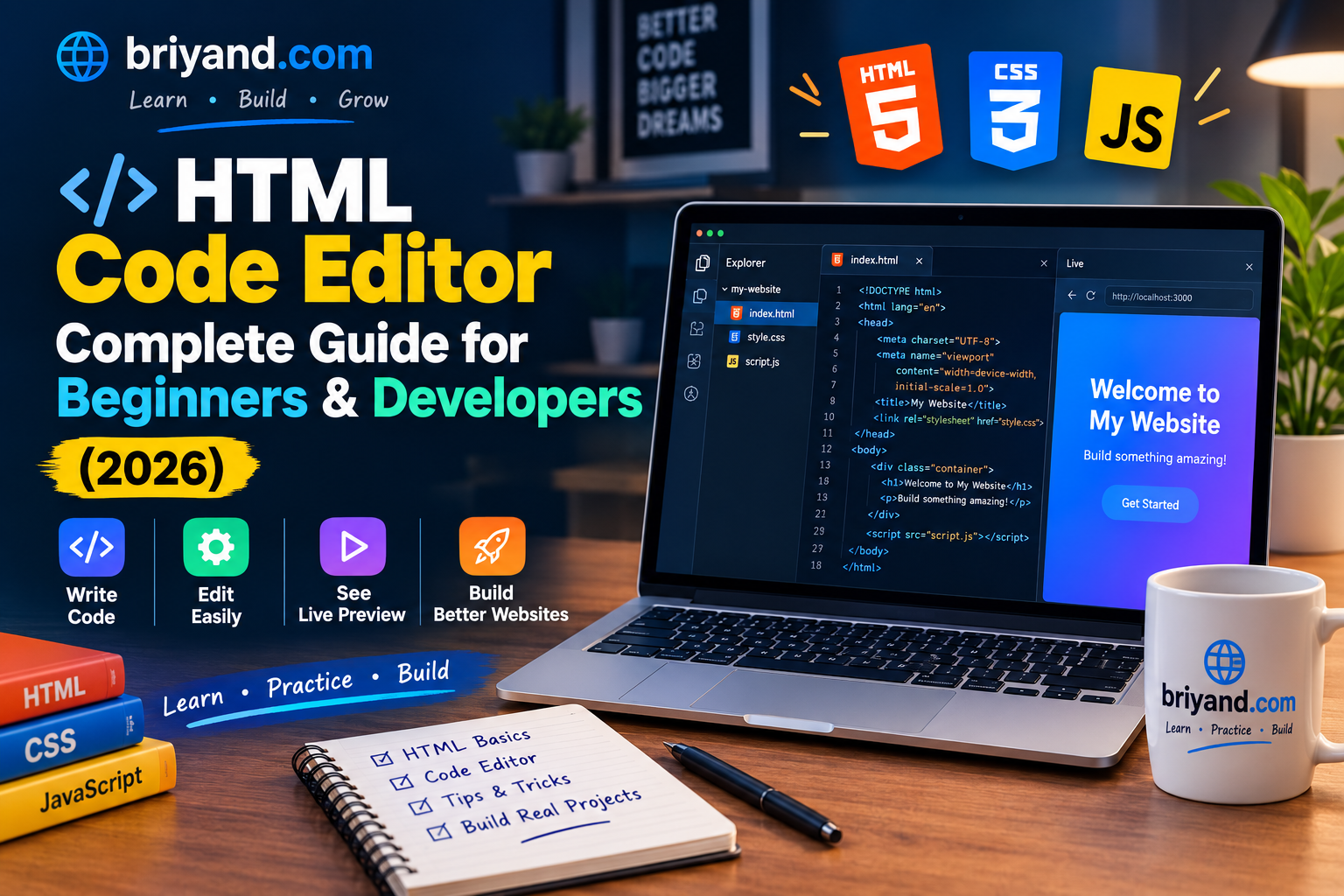
HTML Code Editor Complete Guide for Beginners & Developers (2026)
Still editing HTML in Notepad? There's a better way. This hands-on guide covers the best HTML code editors in 2026, how to set them up, and pro tips that actually speed up your workflow. (187 characters)
HTML Code Editor Complete Guide for Beginners & Developers (2026)
The first time I tried to edit an HTML file, I opened it in Notepad.
Yeah. Notepad.
I stared at a wall of angle brackets, had no idea which <div> belonged to which closing tag, accidentally deleted a semicolon somewhere, and spent two hours wondering why my entire navigation bar had disappeared. The page looked like a ransom note by the time I was done.
If you're starting out with HTML — or if you've been coding for a while but you're still just "getting by" with whatever editor your computer shipped with — this guide is for you. I've tested more editors than I care to count, helped a few friends set up their first coding environments, and made enough embarrassing mistakes along the way to give you a pretty solid shortcut.
Let's talk about HTML code editors — what they actually are, why picking the right one matters more than beginners think, and how to use them well in 2026.
Why Your Editor Choice Actually Matters
Here's something no one told me when I started: the editor you use shapes how fast you learn.
Not because some editors are "smarter" than others (though some genuinely are). It's because a good editor gives you instant feedback. It highlights your mistakes in real time, suggests completions, and shows you a preview of what you're building without making you flip back and forth between tabs.
A bad editor — or worse, no editor at all — lets errors pile up silently. You write 80 lines of HTML, refresh your browser, and everything looks broken. Then you spend 45 minutes playing detective.
I've seen people quit learning web development not because HTML was hard, but because they were using the wrong tool and couldn't figure out what was going wrong. That's fixable. And it starts with choosing the right editor.
What Is an HTML Code Editor, Exactly?
Skip the textbook definition. Here's the practical version:
An HTML code editor is a program (or sometimes a website) where you write, edit, and manage your HTML files. At its most basic level, it's a text editor. At its most powerful, it's basically a cockpit — with syntax highlighting, error detection, auto-completion, live preview, version control integration, and plugins for every language you might work with alongside HTML (CSS, JavaScript, PHP, you name it).
There are two main types:
1. Desktop Editors — You install these on your computer. They work offline, handle large files well, and are generally faster and more powerful. Examples: VS Code, Sublime Text, Notepad++.
2. Online/Browser-Based Editors — You use these right in your browser, no installation needed. Great for quick experiments, sharing code with others, or working from a device that isn't yours. Examples: CodePen, JSFiddle, StackBlitz, Replit.
Both have their place. Beginners often love online editors for their simplicity. Working developers usually prefer desktop editors for full control. Many people — myself included — use both depending on what they're doing.
The Best HTML Code Editors in 2026 (With Honest Takes)
1. Visual Studio Code (VS Code) — The Crowd Favorite for Good Reason
If you ask any working web developer what they use, seven out of ten will say VS Code. Microsoft built it, it's completely free, and the extension ecosystem is massive.
What makes it great for HTML:
- Emmet built-in. This is huge. Type ul>li*5 and hit Tab — it expands into a full unordered list with five items. Learning Emmet shortcuts alone will double your HTML speed.
- Live Server extension. Install it once, click "Go Live," and your browser auto-refreshes every time you save a file. No more manually hitting F5.
- IntelliSense. It suggests tag completions, attribute names, and even values. When you type <input type=", it shows you all the valid input types. That's the kind of thing that catches mistakes before they happen.
- Git integration. When you're ready to push code to GitHub, VS Code handles it right from the sidebar.
The honest downside: VS Code can feel overwhelming when you first open it. The settings menu alone is a rabbit hole. My advice — install it, don't change anything, just start writing. The defaults are solid. Add extensions gradually as you need them.
Best for: Beginners who are serious about learning, and basically every professional developer.
2. Sublime Text — Light, Fast, Beautifully Simple
Sublime Text has been around since 2008 and it's aged well. It's not free (around $99 one-time license), but you can use it indefinitely in free evaluation mode — it just nags you occasionally.
What I love about it: it opens instantly. On a slow laptop or an older machine, Sublime Text starts in under a second. VS Code takes longer, especially if you've loaded it up with extensions.
The "multiple cursors" feature is something I still miss when I'm in other editors. You can select the same word across 20 lines and edit all of them at once. For repetitive HTML work — updating class names, changing dozens of attribute values — it's a genuine time-saver.
Sublime also has a distraction-free mode called "Distraction Free Mode" that hides everything except your code. When I'm deep in a long HTML template, I use this constantly.
Best for: Developers who value speed and simplicity. Also great for people on older hardware.
3. Notepad++ — The Unsung Hero for Windows Users
Don't dismiss this one. Notepad++ is free, lightweight, and still the go-to editor for a lot of people doing HTML work on Windows machines — especially in situations where you just need to quickly edit a file without loading a full IDE.
It doesn't have the power of VS Code, but it has solid syntax highlighting, find-and-replace across multiple files, and a plugin manager for extending functionality. For simple HTML edits, maintenance work, or opening files on a computer that doesn't have anything else installed, it gets the job done.
I keep it installed as a backup even though VS Code is my daily driver.
Best for: Windows users who want something simple and fast without a learning curve.
4. CodePen — The Online Editor That Changed How People Share Code
CodePen is the browser-based editor I recommend to anyone who wants to try HTML without installing anything.
You open codepen.io, click "New Pen," and you get three panels: HTML, CSS, and JavaScript. Whatever you type shows up live in a preview below. That's it. No setup. No file saving (unless you create a free account). No installation.
I've used CodePen to:
- Test a CSS animation without touching my main project
- Show a client what their layout would look like on mobile
- Share a working code example with someone on a forum without emailing files
The free plan is generous. You can create unlimited "pens" (individual projects). The paid plan unlocks private pens, collaborative editing, and a few other features.
Best for: Beginners experimenting with HTML/CSS, people who want to share working code examples, and quick prototyping.
5. Replit — Where Online Editing Gets Serious
If CodePen is a sandbox, Replit is a full workshop. It's an online IDE that supports full projects with multiple files, a terminal, package installation, and even hosting.
In 2026, Replit has leaned hard into AI assistance — their built-in AI can help you write, debug, and explain code. It's gotten genuinely good. For someone learning HTML who also wants to pick up a bit of JavaScript or Python alongside, Replit is an excellent all-in-one environment.
The downside is that the free tier has gotten more limited over time. You might hit walls unless you're on a paid plan.
Best for: Students, bootcamp learners, and developers who want a full coding environment without setting up a local machine.
Setting Up VS Code for HTML — Step by Step
Since most people will end up using VS Code, let me walk you through getting it set up properly. This is exactly what I'd tell a friend on day one.
Step 1: Download and Install VS Code
Go to code.visualstudio.com and download the version for your operating system (Windows, Mac, or Linux). The installer is straightforward — just click through it. When it's done, open the app.
Step 2: Install the Live Server Extension
In VS Code, look for the Extensions icon on the left sidebar — it looks like four squares. Click it. In the search bar, type "Live Server." The top result (by Ritwick Dey, with millions of downloads) is the one you want. Click Install.
Once installed, when you have an HTML file open, you'll see "Go Live" at the bottom right of the screen. Click it, and your default browser opens with a live preview. Save your file, the browser updates automatically. This single extension changes everything for beginners.
Step 3: Create Your First HTML File
Open a folder (File → Open Folder) and create a new file called index.html. In the empty file, type ! and press Tab. VS Code — through Emmet — generates a complete HTML boilerplate for you:
<!DOCTYPE html>
<html lang="en">
<head>
    <meta charset="UTF-8">
    <meta name="viewport" content="width=device-width, initial-scale=1.0">
    <title>Document</title>
</head>
<body>

</body>
</html>
That single ! + Tab trick saves you minutes of typing every single time you start a project. Memorize it now.
Step 4: Install a Theme You Like
This sounds trivial, but hear me out — you're going to be staring at this editor for hours. A theme that's easy on your eyes matters. Go to Extensions and search "themes." Popular choices include:
- One Dark Pro — dark background, easy on eyes for long sessions
- Night Owl — designed specifically to reduce eye strain in low light
- Dracula Official — high contrast, very readable
Change it in File → Preferences → Color Theme (or just press Ctrl+K, then Ctrl+T).
Step 5: Learn These Three Keyboard Shortcuts
You don't need to memorize every shortcut in VS Code. But learn these three immediately:
- Ctrl + / (or Cmd + / on Mac) — toggles a comment. Select a line and hit this to wrap it in <!-- --> instantly.
- Alt + Shift + F — auto-formats your entire document. Messy indentation fixed in one keystroke.
- Ctrl + D — selects the next occurrence of whatever word your cursor is on. Hit it multiple times to select all instances and rename them at once.
Emmet: The Hidden Superpower Inside Most Editors
I mentioned Emmet above but it deserves its own section because not enough beginners know about it.
Emmet is a plugin (built into VS Code by default) that lets you write shorthand and expand it into full HTML. It's like a cheat code.
Some examples:
What you type What you get
| div.container | <div class="container"></div>
| h1{Hello World} | <h1>Hello World</h1>
| ul>li*3>a | A <ul> with 3 <li> tags, each containing an <a> tag
| table>tr*3>td*4 | A table with 3 rows and 4 columns each
| input:email | <input type="email" name="" id="">
Once it clicks, you stop writing HTML the slow way. Your workflow speeds up dramatically, and the repetitive parts of markup feel a lot less painful.
Common Mistakes Beginners Make With HTML Editors
I've made all of these. Watch out for them:
1. Working Directly on Live Files
Early on, I edited an HTML file directly on a client's live server. Made a typo. The page broke. For about 20 minutes, anyone visiting that page saw a mangled mess.
Always work locally first. Make your edits, test them, then upload or deploy. Use a staging environment if you can.
2. Not Using Version Control
If you're past the "just playing around" phase, connect your project to Git from day one. You will, at some point, delete or overwrite something you shouldn't have. Version control is your undo button for the last six months of work.
VS Code has Git built in. GitHub Desktop is another easy option if you prefer a visual interface. Either way, commit your work frequently.
3. Ignoring Accessibility Hints
Some editors (VS Code with the right extensions) will flag accessibility issues — missing alt attributes on images, improper heading hierarchy, form labels that aren't linked to inputs. Don't dismiss these warnings. They're not nitpicking. They affect real users, and they affect your SEO.
4. Installing Too Many Extensions Too Fast
I have seen people install 40 VS Code extensions their first week. The editor slows down, behaviors start conflicting, and debugging becomes a nightmare. Start with just Live Server and maybe a Prettier (code formatter). Add things one at a time as you actually need them.
5. Using the Wrong File Encoding
If you're working with non-English characters and your HTML page shows weird symbols (like é instead of é), your file encoding is probably off. Always save HTML files as UTF-8. In VS Code, you can see and change the encoding in the bottom status bar.
HTML Editors on Mobile and Tablets (Yes, It's a Thing Now)
By 2026, mobile coding has gotten surprisingly usable. A few tools worth knowing:
- Spck Code Editor (iOS/Android) — A genuinely capable mobile HTML editor with syntax highlighting, Emmet support, and GitHub integration.
- Acode (Android) — Open source, lightweight, works great for quick edits.
- Code on iPhone (iOS) — Simple but solid for emergency edits when you're away from your desk.
I wouldn't build a full site on a phone. But if you're traveling and need to push a quick fix? These get the job done.
Online HTML Editors Worth Bookmarking
Beyond CodePen and Replit, a few others I've found genuinely useful:
- JSFiddle — Similar to CodePen, excellent for JavaScript-heavy examples. Better suited for sharing snippets with the developer community.
- StackBlitz — Runs Node.js in the browser, so it's actually powerful enough for frameworks like React or Vue. Not just basic HTML.
- HTML-Online.net — Minimal, fast, no account required. Great when you need to test a single snippet instantly and don't want to open a full app.
Real-World Use Cases: When to Use Which Editor
Here's how I actually use different editors in real life, not in theory:
Building a full website from scratch? VS Code, local project folder, Live Server running, Git initialized from the start.
Teaching someone HTML for the first time? CodePen. No setup barrier, instant feedback, shareable link so I can look at their code remotely.
Quick client request — just change the button text on a page? Notepad++ or even VS Code opened from the file manager. Get in, make the change, get out.
Testing whether a CSS animation works? CodePen. I keep the project separate and clean, then copy the finished code into my main project.
Working on a team project with shared code? VS Code with Git, pull requests on GitHub, and usually Prettier configured so everyone's formatting matches.
Collaborating in real time? VS Code Live Share extension. You and another developer can edit the same file simultaneously, like Google Docs for code. It's weird the first time you see someone else's cursor moving around, but incredibly useful.
What's New in 2026: AI-Assisted HTML Editing
It'd be dishonest to write a 2026 guide and not talk about AI features in editors.
VS Code now has GitHub Copilot deeply integrated. When you start typing an HTML structure, it predicts what you're building and offers to complete it. You can describe what you want in a comment (<!-- create a responsive three-column card layout -->) and it generates the markup.
Is it perfect? No. It sometimes generates deprecated attributes, overly verbose markup, or accessibility issues that need fixing. But as a starting point? It's genuinely useful for scaffolding layouts fast.
Cursor (a VS Code fork with AI at its center) has built a following among developers who want deeper AI integration — you can have a conversation with the AI about your code, ask it to refactor sections, or explain what a confusing block does.
My take: use AI assistance as a drafting tool, not a replacement for understanding. If you don't know what the code means, you can't fix it when something goes wrong. And something will always go wrong eventually.
The Editor Doesn't Matter As Much As the Code You Write In It
I want to end on something that took me a while to internalize.
Debates about which editor is "the best" can become a way of procrastinating from actually writing code. I've known people who spent weeks customizing their VS Code setup and barely wrote a line of HTML.
The editor is just a tool. Pick one that makes you comfortable and get to work. You can always switch later — your HTML skills come with you, your muscle memory for keyboard shortcuts takes a day or two to rewire, and you'll be productive again quickly.
If you're brand new: open CodePen right now, type some HTML, see what happens. When you're ready to work on real projects, download VS Code, install Live Server, and build something.
That's it. That's the whole secret.
The people who get good at HTML aren't the ones with the most optimized editor setup. They're the ones who wrote a lot of bad HTML, figured out what was wrong, and kept going.
Start messy. Fix things. Ship something.
Your editor is just there to make that process slightly less painful — and the right one absolutely will.
Got questions about setting up your editor or running into a specific issue? Drop them in the comments — I check regularly and try to respond to everything.
Contact
Missing something?
Feel free to request missing tools or give some feedback using our contact form.
Contact Us