10
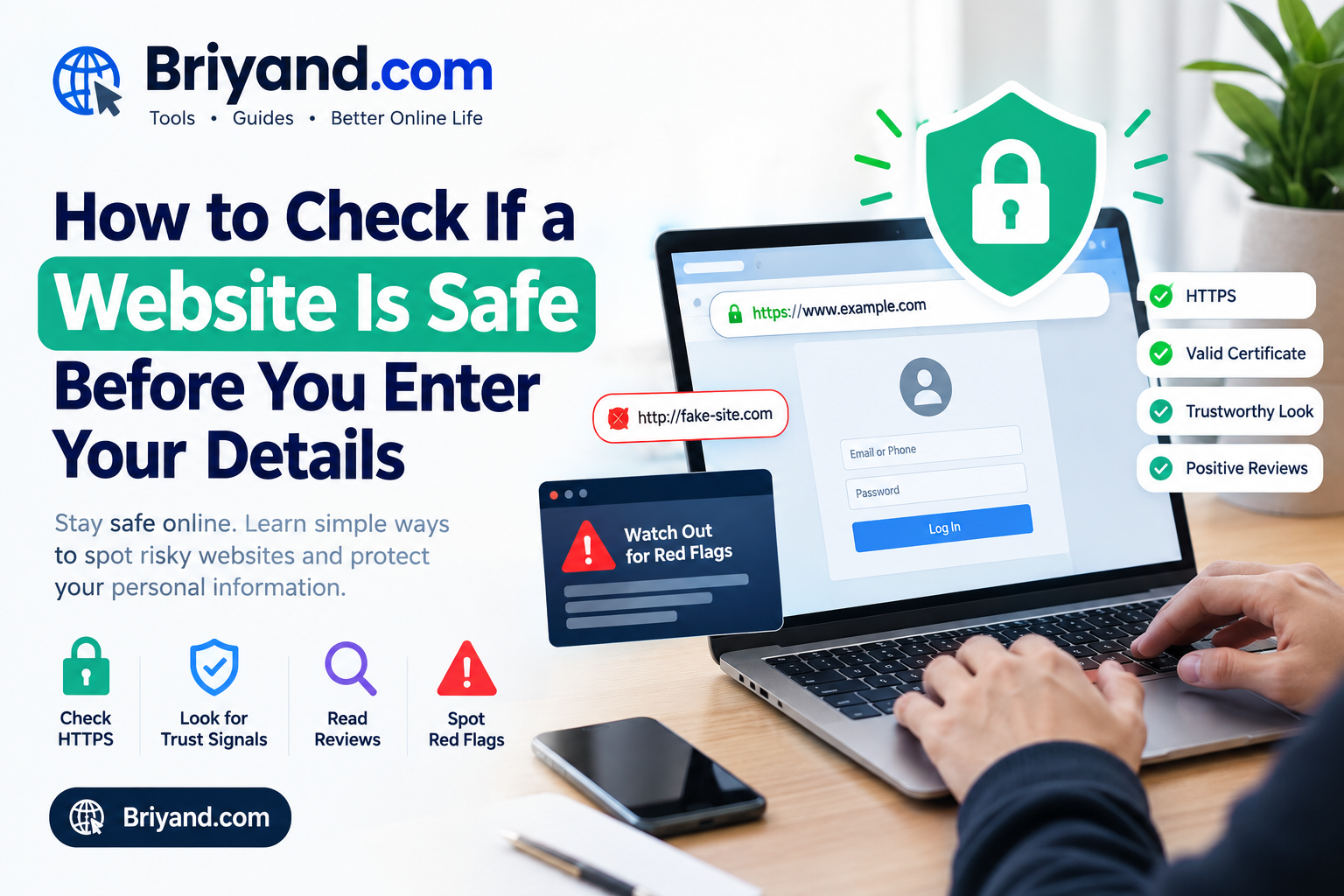
How to Check If a Website Is Safe Before You Enter Your Details
Fake websites look real now. Here's how to spot a scam site in seconds using free tools, URL tricks, and browser checks — before it's too late.
How to Check If a Website Is Safe Before You Enter Your Details
A real guide from someone who learned the hard way
A few years back, I almost handed my credit card details to a fake travel booking site.
It looked completely legit — nice design, professional logo, even a little padlock icon in the browser bar. I was booking a last-minute hotel and the price was just good enough to feel like a steal. I filled in my name, email, and was literally one click away from entering my card number when something made me pause.
Something about the URL felt slightly off. I can't even explain what it was — maybe a gut feeling, maybe years of being online had trained some part of my brain to notice it. I copied the URL into a new tab, stared at it, and finally saw it: the domain was booking-hotels-secure[dot]com instead of booking.com. Classic phishing trap.
That moment of hesitation saved me from what could have been a genuinely horrible week.
Since then, I've made it a habit to spend 30–60 seconds checking any website before I put in any personal or financial information. And honestly, once you know what to look for, it becomes second nature — like checking your blind spot before changing lanes.
Here's everything I've learned.
The First Thing Most People Miss: The URL Is More Important Than the Design
Scammers have figured out that people judge websites by how they look. And fair enough — a decade ago, fake sites looked terrible. Now? Tools like Wix, Squarespace, and stolen templates mean a convincing-looking fake can be built in an afternoon.
So stop trusting the design alone. The URL is where the truth usually hides.
What to actually look at in a URL:
When you're on a website, look at the full address in your browser bar. Don't just glance at it — actually read it. Here's what matters:
1. The actual domain name (the part before .com / .org / .net)
Scammers love to create domains that look like the real thing at a glance:
- paypal-secure-login.com → Not PayPal. PayPal is paypal.com.
- amazon-order-support.net → Not Amazon. Amazon is amazon.com.
- netfl1x.com → That's a number 1, not a letter i.
The rule: the real domain is whatever comes immediately before the last dot and the extension (.com, .net, etc.). Everything else is either a subdomain or a scam.
2. The extension matters more than you think
.com, .org, .gov, .edu — these are established and somewhat regulated. But sketchy domains like .xyz, .top, .click, .loan are dirt cheap and have almost zero accountability. That doesn't mean every .xyz site is dangerous, but if you're about to enter payment details on a .xyz domain you've never heard of, slow down.
3. HTTPS — necessary but NOT enough
I know, I know — you've probably been told to look for the padlock. That advice isn't wrong, but it's massively incomplete now. The padlock just means the connection between you and the site is encrypted. It says nothing about whether the site itself is trustworthy.
In 2024, the majority of phishing sites use HTTPS. They get free SSL certificates (the thing that makes the padlock appear) in seconds through services like Let's Encrypt. So a padlock + a fake domain = a very convincing scam with encrypted data transmission straight to a criminal.
Still check for it — a site without HTTPS is an automatic red flag — but don't use it as your only signal.
Use a Website Checker Tool (Takes 30 Seconds)
This is the step most people skip because they don't know these tools exist. They're free, and they can catch things your eyes never would.
Google Safe Browsing Transparency Report
Go to transparencyreport.google.com/safe-browsing/search and paste in any URL. Google checks it against its database of known malicious sites. It's not perfect — new scam sites won't be indexed yet — but it's a good first check and takes literally five seconds.
VirusTotal
This one's my personal go-to. Head to virustotal.com, click the URL tab, paste the address, and hit enter. VirusTotal runs the URL through 70+ security engines simultaneously and gives you a clear breakdown of how many flagged it and why.
I've used this dozens of times. Once I checked a "free software download" site that looked fine to the naked eye, and VirusTotal flagged it with 14 out of 70 engines. Those are not odds I'd bet my computer on.
URLScan.io
This one's a bit more technical but incredibly useful. URLScan.io actually visits the site on your behalf and takes a screenshot, shows you all the network requests, and gives you a risk score. It's like having a disposable browser tab that checks things out before you do.
Great for when you get a suspicious link in an email and want to see what it does without clicking it yourself.
Scamadviser.com
Type in a domain and it gives you a trust score plus background info — where the site is registered, how old it is, whether the owner has hidden their identity, and reviews from users. Not scientific, but surprisingly useful for catching newly-registered fake shopping sites.
Whois Lookup
At whois.domaintools.com, you can check when a domain was registered. Scam sites are usually brand new. If you're looking at what claims to be a well-established company and their domain is 3 weeks old, something's very wrong.
Check the Website's Age and Reputation
A legitimate business that's been operating for years has a digital paper trail. A scam site that was created to steal card details last month does not.
Here's what I usually do for any unfamiliar shopping or service site:
Search the site name + "review" or "scam"
Open a new tab, type [website name] reviews or [website name] scam reddit and see what comes up. Reddit is particularly useful here because real people post experiences and you can usually tell pretty quickly if something's off. Trustpilot is another decent option, though be aware that reviews can be faked there too.
Check the Wayback Machine
Head to web.archive.org and paste in the domain. If a site claims to have been in business for 10 years but has zero archived versions, that's suspicious. Real, long-standing businesses show up in web archives.
Look for a physical address and phone number
Scam sites often have vague or non-existent contact information. If there's no address listed anywhere, or the "contact us" page is just a form with no other details, be cautious. For shopping sites especially, I always try to find a real address and then Google it to see if it actually exists.
Browser Security Features You Should Actually Use
Your browser is quietly doing a lot of safety work in the background — but most people don't even know what's enabled or how to boost it.
Chrome's Enhanced Safe Browsing
Go to Chrome Settings → Privacy and Security → Security → and switch it to "Enhanced protection." This gives you real-time checking against Google's threat database, not just the standard periodic updates. It's a meaningful upgrade and I turned it on years ago.
Firefox's Privacy Protections
Firefox has solid built-in protections against trackers, and it integrates with Mozilla's own lists of known bad sites. You can boost this further by going to Settings → Privacy & Security and selecting "Strict" mode.
Extensions Worth Installing
- uBlock Origin — The best free ad and content blocker out there. It also blocks a lot of malicious scripts and redirect traps. I've had this installed for so long I forget what the internet looks like without it.
- Bitdefender TrafficLight — A browser extension that checks links in real time and overlays a rating on search results. Handy if you frequently click links from search pages.
- Privacy Badger (from the EFF) — Blocks invisible trackers. Useful more for privacy than security, but worth having.
I'd avoid random lesser-known security extensions from the Chrome Web Store because, ironically, some of those have turned out to be malware themselves. Stick to well-known names with lots of verified reviews.
The SSL Certificate Tells You More Than You Think
Okay, I mentioned the padlock isn't enough on its own — but there's still useful info inside it if you know how to look.
Click on the padlock icon in your browser bar. You'll see options including "Connection is secure" and a way to view the certificate.
Look at:
Who issued the certificate?
Legitimate businesses often use certificates from DigiCert, Sectigo, or similar CAs. Phishing sites typically use free certificates from Let's Encrypt (though many real sites use Let's Encrypt too, so this alone isn't disqualifying). What you're really watching for is the type of certificate.
Extended Validation (EV) certificates
Some high-security sites — especially banks and government portals — use EV certificates, which require real identity verification to issue. These used to show the company name in green next to the padlock in older browsers. Modern browsers have toned this down, but you can still see it by clicking the padlock and reading the certificate details. An EV certificate for a bank's site means someone actually verified that a real company applied for it.
Who is the certificate issued to?
If the certificate on a site claiming to be "Amazon" is actually issued to some random-sounding company name you've never heard of, that's a red flag.
What to Do When an Email Sends You to a Website
This is where most people get caught. Phishing emails are frighteningly good now. I've seen fake Amazon shipping notifications that look pixel-perfect.
The one rule that will save you more than anything else: never click links in emails to visit sites where you'll enter your details. Instead, open a new tab and navigate to the site directly.
Got an email saying your Netflix payment failed? Don't click the link. Open your browser, type netflix.com yourself, log in, and check from there.
Got a "security alert" from your bank? Same deal. Call the number on the back of your card or go directly to the bank's website yourself.
If you're curious where an email link actually goes before clicking it, hover your mouse over it (on desktop) and look at the bottom of your browser — it'll show you the real destination URL. If it looks different from what the link text says, do not click it.
Red Flags That Should Make You Stop Immediately
Over the years, here's my mental checklist of things that make me immediately close a tab:
- Prices that are almost insultingly low. That "brand new iPhone for $89" site isn't a deal. It's a data-harvesting operation or a counterfeit trap.
- Urgent pressure language. "Act NOW — only 2 left!" "This offer expires in 00:03:27!" Legitimate retailers don't need to panic you into buying.
- Spelling and grammar errors scattered through the site. Real companies proofread their websites. Scammers often don't bother, or they're operating in a second language.
- No HTTPS at all. Automatic no.
- Payment only via wire transfer, gift cards, or cryptocurrency. No legitimate store operates this way. This is how scammers extract untraceable money.
- A pop-up that warns your computer is infected and demands you call a number. This is always, 100% of the time, a scam. Close the tab.
- The site redirects you multiple times before landing. Aggressive redirect chains are a classic malware distribution tactic.
- Login page that looks like a known service but the URL is wrong. The most classic phishing setup there is.
A Quick Step-by-Step Routine for Any Unfamiliar Site
Here's what my actual process looks like when I land on a site I haven't used before and I'm thinking about entering details:
Step 1: Read the full URL carefully. Is the domain actually what I expect?
Step 2: Check for HTTPS. No padlock = close immediately.
Step 3: Paste the URL into VirusTotal. Takes 10 seconds.
Step 4: Quickly Google the site name + "review" or "scam." Look at the Reddit results especially.
Step 5: Check the About Us page and look for a real address, phone number, and something that sounds like a real company history.
Step 6: If it's a shopping site, search for the company on Companies House (UK) or the Better Business Bureau (US) to see if they're registered.
Step 7: If I'm still on the fence, I'll check when the domain was registered via Whois. Anything under a year old for a site asking for payment details makes me very cautious.
The whole routine takes under two minutes. And when I've done it, I've never regretted the caution.
Common Mistakes People Make (That I've Also Made)
Trusting design over substance. I did this. The fancy travel booking site looked beautiful. It meant nothing.
Assuming a Google result = a safe site. Google's search results include scam sites. They get taken down eventually, but "I found it on Google" is not a safety guarantee.
Reusing the same password everywhere. This isn't about checking if a site is safe before you enter details — it's about damage control when you get it wrong. If you use one unique password per site (a password manager like Bitwarden or 1Password makes this manageable), then a breach at one site doesn't cascade into everything else.
Entering card details on public Wi-Fi without a VPN. Even on legitimate sites, public networks can be monitored. A VPN (I use Mullvad, others like ProtonVPN are solid too) encrypts your traffic before it leaves your device.
Ignoring browser warnings. When Chrome shows you a big red "Dangerous site" warning, some people click through anyway. Please don't. That warning doesn't appear casually.
One More Thing: Trust Your Gut
I've talked a lot about tools and techniques, and they genuinely matter. But that gut instinct I had on the fake travel site? Don't dismiss it.
If something about a website makes you slightly uncomfortable and you can't put your finger on exactly why, don't push through. There will always be another option. The genuine hotel will still be available through the official site. The product you want will be sold somewhere legitimate.
The internet is enormous and the legitimate parts of it are very large. You don't have to take risks.
Final Thoughts
Nobody teaches you this stuff at school, which means most people learn it through painful experience — a cloned card, a drained PayPal, a device infected with something nasty. I got lucky with that almost-booking. A lot of people aren't.
The good news is that staying safe really doesn't take much. A few seconds of checking, a couple of free tools bookmarked in your browser, and one solid rule about never clicking email links to log into anything — that combination will protect you from the vast majority of what's out there.
Save this article, share it with someone who's less tech-savvy than you, and bookmark VirusTotal. Future you will be grateful.
Have a tip I didn't cover, or a close-call story of your own? Drop it in the comments — real experiences help everyone.
Contact
Missing something?
Feel free to request missing tools or give some feedback using our contact form.
Contact Us