10
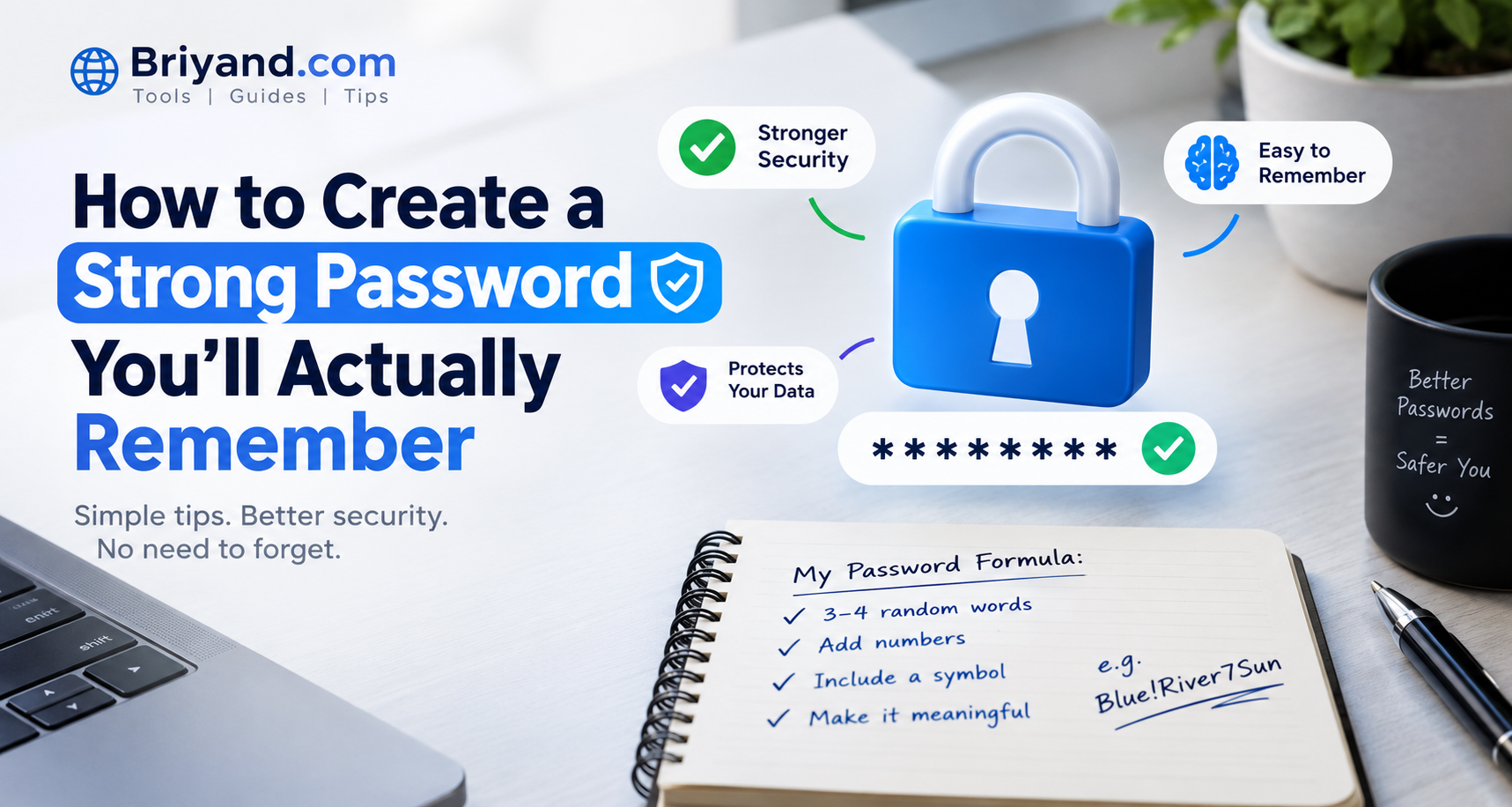
How to Create a Strong Password You'll Actually Remember
I lost access to $3,000 worth of invoices because of a bad password. Here's the system I use now — strong passwords you can actually remember, without the headache.
How to Create a Strong Password You'll Actually Remember
By a tech blogger who has locked themselves out of their own accounts more times than they'd like to admit
Let me start with a confession. Back in 2019, I lost access to a freelance client account that had invoices worth over $3,000 sitting in it — unpaid. Why? Because I had set a "secure" password, written it on a sticky note, and then my dog ate the sticky note. I'm completely serious.
The password manager I should have been using? I had downloaded it six months earlier. It was still sitting there, unopened, on my phone's home screen.
That incident changed the way I think about passwords forever. And since then, I've spent an embarrassing amount of time testing different password strategies — some brilliant, some absolutely terrible — until I landed on a system that actually works for normal human beings who aren't cybersecurity professionals.
If you're tired of forgetting passwords, using your dog's name followed by "123," or hitting the "Forgot Password" link for the fourth time this week — this one's for you.
Why the Password Advice You've Been Given is Kind of Terrible
Here's the thing nobody tells you: the traditional advice about passwords has been largely wrong — or at least, incomplete — for years.
"Use a random string of letters, numbers, and symbols!" Sure. Can you remember Xk!9mP@2vQ? I can't. And neither can most people, which is exactly why they end up recycling the same password across 47 different websites.
The guy who literally wrote the book on password complexity rules — Bill Burr, who worked at the National Institute of Standards and Technology (NIST) — actually said in 2017 that he regretted the advice he gave in 2003. All that business about replacing letters with symbols (like using @ instead of a) and rotating passwords every 90 days? It turns out that advice made people create worse passwords, not better ones.
NIST's updated guidelines now focus on password length over complexity, and on avoiding known compromised passwords. Length wins. A long password beats a short complicated one almost every time.
So the first mindset shift you need to make: longer is better than weirder.
The Actual Threat You're Protecting Against
Before we build a system, it helps to know what you're actually up against. Because "hackers" in movies — sitting in hoodies, typing furiously in a dark room — aren't really how most password theft happens.
The two most common ways your password gets stolen are:
1. Data breaches. A company you have an account with gets hacked, and your email + password combination gets sold on the dark web. This is why reusing passwords across sites is so dangerous. One breach at some random forum you signed up for in 2014 can unlock your email, your bank, your Netflix, everything — if you use the same password.
2. Phishing. You click a convincing fake link, type your password into a website that looks real but isn't, and it's gone. A super-complex password does nothing to protect you here.
Actual brute-force attacks (where someone tries billions of password combinations) happen, but they're usually against stolen password databases, not live accounts with lockout systems.
This matters because it shapes your strategy. You want passwords that are:
- Unique to every site (so one breach doesn't cascade)
- Long enough to resist cracking if the hash is stolen
- Not based on personal info that's guessable (birthday, pet name, hometown)
The Three Systems That Actually Work
I've tried basically every approach over the years. Here are the three that I'd actually recommend to a friend.
System 1: The Passphrase Method (My Personal Favorite)
This is the approach that changed everything for me, and it's what I use for the handful of passwords I need to remember by heart — like my password manager master password and my main email.
The idea is simple: use a random string of four or more ordinary words.
Instead of: P@ssw0rd! (terrible, by the way — it's in every hacker's dictionary)
Use something like: coffee-blanket-thunder-recipe
Or: purple guitar sunrise eleven
Random, unrelated words. The randomness is the key. "I love my cat" doesn't count because phrases people commonly say are guessable. The words need to be genuinely random — almost bizarre together.
The math here is stunning. "coffee blanket thunder recipe" has roughly 44 bits of entropy. That would take a modern computer over a thousand years to crack by brute force, even offline. Meanwhile, P@ssw0rd1 has about 30 bits and would fall in seconds.
How to generate a good passphrase:
The best tool for this is the EFF's Diceware list. You literally roll a physical die five times, look up the result on a word list, and that's your word. Do it four times and you have a passphrase. It sounds old-fashioned, but the point is that no computer or algorithm is involved in picking the words, which makes it genuinely random.
If you don't have dice handy, the website diceware.dmuth.org does the same thing. Bitwarden's password generator (more on that below) also has a passphrase mode that I use constantly.
Making it memorable:
Once you have your four random words, create a tiny mental image. "coffee blanket thunder recipe" — picture yourself wrapped in a blanket drinking coffee during a thunderstorm, writing down a recipe. Weird, specific images stick better than abstract ones. This is just basic memory palace technique applied to passwords.
System 2: A Password Manager (The One You'll Hear About Everywhere — For Good Reason)
I held off on using a password manager for years because I was nervous about having all my eggs in one basket. What if the password manager got hacked? What if I forgot that master password?
Then I actually looked at the math and realized the opposite is true. Using a password manager is dramatically safer than not using one.
Here's why: without one, you're either reusing passwords (dangerous) or writing them somewhere (risky) or using simple ones you can remember (weak). A password manager lets you have a different, genuinely random 20-character password for every single site — passwords that even you don't know — and you only have to remember one good master password to access all of them.
The apps I've used and can recommend:
Bitwarden — This is what I use personally. It's open-source (meaning security researchers can and do audit the code), it's free for personal use, it syncs across all your devices, and there's a browser extension that makes autofill seamless. Paid plans are $10/year and unlock some useful extras. I genuinely can't find a reason not to recommend this one.
1Password — Slicker interface, a bit more polished, costs $36/year. Families plan at $60/year is excellent value if you're trying to get your household set up securely. They have a great "Travel Mode" that hides certain vaults at borders, which is a niche but cool feature.
Apple Keychain / iCloud Passwords — If you're fully in the Apple ecosystem (iPhone, Mac, Safari), the built-in password manager is genuinely solid now. It generates strong passwords, autofills them, and alerts you to reused or compromised ones. The main downside is it's awkward if you ever use Windows or Android.
Google Password Manager — Similar story. Works great if you live in Chrome. Gets uncomfortable if you ever leave Google's ecosystem.
The setup process for Bitwarden takes about 20 minutes. You install the browser extension, create an account with a strong master passphrase (see System 1 above), and then start importing or updating your passwords as you log in to sites. Within a week, most of your important accounts are covered.
System 3: A Personal Algorithm (For People Who Refuse to Use a Password Manager)
Some people — particularly older family members I've tried to help — are simply never going to use a password manager. That's reality. So here's the next best option.
Build a personal algorithm: a formula you keep in your head that produces a unique password for every site.
Here's an example formula (don't use this exact one since it's now public — invent your own):
- Take a base phrase you'll never forget: BlueSky88
- Take the first three letters of the website: for Google, that's goo
- Add a consistent special character: !
- Combine them: BlueSky88!goo
For Amazon: BlueSky88!ama For your bank: BlueSky88!ban
Every password is different, none of them are guessable without knowing your formula, and you only have to remember the pattern.
This isn't as strong as a full password manager — if someone figures out your formula (say, from seeing two of your passwords after breaches), they can reverse-engineer all your others. But it's miles better than using the same password everywhere, and it produces passwords that are actually memorable.
The important part is making your base phrase something personal and long, not something guessable. Not your birthday. Not your kid's name. Think: a weird memory, an inside joke, something that means something only to you.
Setting Up for the First Time: A Realistic Step-by-Step
If you're starting from scratch (or starting over after a security wake-up call), here's the practical sequence I'd actually follow:
Step 1: Create a strong master passphrase first. Before you do anything else, create your anchor password — the one you'll use for your password manager or as your email account password. Use the diceware method. Write it on paper and keep it somewhere physically safe for the first month while you memorize it. Your sock drawer, a notebook in a locked cabinet. Just not a sticky note on your monitor.
Step 2: Set up Bitwarden (or your preferred manager). Download it on your phone and install the browser extension on your computer. Create your account with that master passphrase. Enable two-factor authentication — the app will walk you through it. I use an authenticator app (Google Authenticator or Authy) for this, not SMS, because SMS can be intercepted.
Step 3: Start with your highest-value accounts. Don't try to fix everything at once — you'll burn out. Start with: email, bank, any financial accounts, work accounts. For each one, go to the account settings, change the password, and let Bitwarden generate a new random 20-character one. Save it. Done.
Step 4: Update as you go. Every time you log into a site over the next month, check whether Bitwarden has a saved password. If it's a reused or weak one, update it right then. Within four to six weeks, your major accounts will all have unique, strong passwords without a massive all-at-once effort.
Step 5: Handle the stragglers. Some things you'll never put in a password manager — ancient accounts you barely use, a random forum from 2011. For those, honestly, a weak password is probably fine if there's nothing valuable there. Focus your energy on what matters.
Mistakes I've Made (So You Don't Have To)
Using personal information. I used my first dog's name + birth year as a password for years. Pepper2003. The problem? I'd mentioned my dog's name and approximate age on social media dozens of times. Anyone targeting me specifically could have guessed it in under an hour.
"Securing" a password by adding a number at the end. Password1 is one of the most common passwords in existence. Attackers' dictionaries include every common word followed by every common number combination. This isn't security; it's theater.
Writing passwords in a plain text file labeled "passwords.txt" on the desktop. Yes, I did this. Yes, it's exactly as bad as it sounds. A single piece of malware or someone with five minutes alone with your computer and it's all gone.
Using the same password for my email as for everything else. Email is the master key to your entire digital life, because "forgot password" links go to email. If your email password is compromised, everything else is an automatic follow-on. Your email password should be unique, strong, and ideally protected with two-factor authentication.
Skipping two-factor authentication because it felt like a hassle. The extra ten seconds of entering a code when you log in from a new device has prevented what could have been several account compromises for me. It's the single highest-value security step most people skip.
What About Two-Factor Authentication?
Since I keep mentioning it — two-factor authentication (2FA) deserves a quick standalone section because it's genuinely transformative.
The idea: even if someone has your password, they can't log in without a second factor — usually a code that expires in 30 seconds, generated by an app on your phone.
The apps: Authy and Google Authenticator are the most common. I prefer Authy because it backs up your codes encrypted to the cloud, so you don't lose everything if you lose your phone. Google Authenticator is local only by default (though they've added optional sync now).
Turn on 2FA for: email (this is non-negotiable), bank, any account with payment information, your password manager itself, social media you care about.
The question I get: "What if I lose my phone?" Every service that offers 2FA also gives you backup codes when you set it up. Print them. Put them in the same place as your master passphrase. Done.
How to Know If Your Password Has Already Been Leaked
Before you start changing things, it's worth knowing where you already stand. Troy Hunt's website Have I Been Pwned (haveibeenpwned.com) lets you type in your email address and see which data breaches it appeared in. It's free, it's legitimate, and it's been referenced by the FBI and dozens of security organizations.
Bitwarden also has a built-in feature called "Data Breach Report" that checks your saved passwords against known breach databases. If any of your passwords have appeared in a breach, it flags them for immediate change.
Check haveibeenpwned right now. I'll wait.
If your email address shows up in ten breaches (mine does, because my address has been around since 2007 and some of those sites got hacked), don't panic. What matters is whether you're still using those passwords. Change any that showed up, make the new ones unique, move on.
A Note on Browser-Saved Passwords
Chrome's built-in password manager is fine as a starting point, but it has a real vulnerability: if someone sits down at your unlocked computer, they can often view your saved passwords in plain text in the browser settings. And if you sync Chrome to a Google account that gets compromised, so does everything in it.
Dedicated password managers encrypt your vault with your master password, meaning even if someone got the encrypted data, they couldn't read it without your key. That's the meaningful difference.
If you're currently relying solely on Chrome or Firefox to save passwords, migrating to Bitwarden takes about thirty minutes and is worth every second.
The Password You Should Change Right Now
If you do nothing else after reading this, change the password on your primary email account to something unique, long, and stored nowhere else.
Right now. Before you finish your coffee.
Your email is the skeleton key. Everything resets through it. Spam filters and strong passwords everywhere else mean nothing if someone can request a "forgot password" email to an inbox they now control.
Make it a passphrase. Make it four random words. Make it something you can actually commit to memory. Enable two-factor authentication while you're in there.
That one change, right now, will make you meaningfully more secure than 80% of people using the internet.
The Bigger Picture
Here's what I've come to believe after years of thinking about this stuff: perfect security is impossible, and chasing it is a great way to drive yourself crazy. What you're actually aiming for is to not be the easiest target.
Attackers — the automated scripts, the credential stuffers, the opportunistic hackers — go for low-hanging fruit. Reused passwords are low-hanging fruit. "Password123" is low-hanging fruit. An old account you haven't updated since 2016 is low-hanging fruit.
A unique, reasonably long password for each account, a password manager to keep track of them, and two-factor authentication on your most important accounts — that combination puts you well out of the easy-target zone. It doesn't make you invincible. But it means the attacker moves on to someone easier.
The beautiful irony of the system I use now: my passwords are both stronger and easier to manage than they were when I was trying to remember everything myself. I remember one really good passphrase. My password manager handles the rest. When something wants a password, Bitwarden fills it in. When I need to update something, Bitwarden generates a 20-character random string I never have to see again.
It took one afternoon to set up. It took about a month for it to feel completely natural. And it took away the dull anxiety of knowing, in the back of my mind, that my accounts weren't actually secure.
That peace of mind is underrated. Give it a shot.
Have a question about password security or a specific situation you're trying to solve? Drop it in the comments — I read every one.
Contact
Missing something?
Feel free to request missing tools or give some feedback using our contact form.
Contact Us