31
How to Find Your IP Address on Android and PC (The Way I Actually Do It)
"Finding your IP address on Android and PC only takes a minute once you know where to look. Here's the exact method I use, plus common mixups to avoid."
How to Find Your IP Address on Android and PC (The Way I Actually Do It)
A few months back I was trying to set up a security camera at my parents' place so I could check on their dog while they were traveling. Simple enough, right? Plug it in, download the app, done.
Except the app kept asking me for an IP address to "manually connect" because the automatic setup wasn't finding the camera on the network. And that's when I realized how many people — including me, for a solid ten minutes — get completely tripped up by something that sounds so basic.
I actually typed my public IP address (the one Google shows you) into the camera app first. Didn't work, obviously. Then I tried again with the wrong local IP because I grabbed it from an old screenshot on my phone. Also didn't work. It wasn't until I actually sat down and checked both my phone's IP and my router's IP properly that the whole thing connected in about thirty seconds.
That mix-up is more common than you'd think, so I wanted to write this the way I wish someone had explained it to me — not a textbook definition, just the actual steps I use on my Android phone and my Windows PC, plus the mistakes that wasted my time so you don't repeat them.
Wait, There Are Two Kinds of IP Addresses?
Yeah, and this is the part that trips almost everyone up at some point.
Your device actually has two IP addresses that matter:
- Local (private) IP address — this is the address your router assigns to your phone, laptop, or camera inside your home network. It usually looks like 192.168.1.15 or 10.0.0.23. Every device on your Wi-Fi has its own local IP, and it's only visible to other devices on that same network.
- Public IP address — this is the address the entire internet sees when your network talks to the outside world. It's assigned by your internet provider (Spectrum, Comcast, Jio, Airtel, whatever you're using), and every device behind your router shares this same one.
So when my camera app asked for an IP address to connect manually, it wanted the local one, since the camera and my phone were on the same Wi-Fi. I kept giving it the public one out of habit because that's the "IP address" most people think of first, thanks to sites like whatismyip.com.
Once that clicked for me, everything else made a lot more sense.
Finding Your IP Address on Android (3 Ways I've Actually Used)
Android has changed its settings layout more times than I can count, so depending on your phone (Samsung, Pixel, OnePlus, Xiaomi), the exact wording might be slightly different. But the general path stays close to this.
Method 1: Through Wi-Fi Settings (fastest, no app needed)
This is what I use 90% of the time because it doesn't require installing anything.
- Open Settings on your phone.
- Tap Network & internet (on some phones it's just called "Connections").
- Tap Wi-Fi.
- Tap the little gear icon or the name of the Wi-Fi network you're currently connected to.
- Scroll down and look for IP address under the network details.
On my Pixel, it shows up almost immediately under "Advanced." On my old Samsung Galaxy, I had to tap "View more" first. Slightly annoying, but it's there.
That number you see — something like 192.168.1.42 — is your phone's local IP address on that specific Wi-Fi network. It'll be different the moment you connect to a different Wi-Fi network (like at a coffee shop or your office).
Method 2: Using the About Phone Section
Some Android skins bury this a bit differently. If you can't find it under Wi-Fi settings:
- Go to Settings.
- Tap About phone.
- Tap Status or Status information.
- Look for IP address in the list.
This shows the same local IP, just from a different menu. Handy if your phone's settings app organizes things weirdly (looking at you, older MIUI versions).
Method 3: Finding Your Public IP on Android
If you actually need your public IP (say, for setting up remote access or checking if your VPN is working), the settings menu won't show that — it only knows about the local network.
What I do instead is just open Chrome (or any browser) and type:
"what is my ip" into Google.
Google shows it right at the top of the search results. No app, no hassle.
If I want a bit more detail — like which city or ISP it's tied to — I'll open whatismyipaddress.com instead, since it breaks down the ISP name and rough location too. I've used this a bunch of times just to double check whether my VPN app (I use ProtonVPN most days) is actually routing my traffic through a different country, since sometimes it silently disconnects in the background and I don't notice until my Netflix library looks weirdly local again.
Bonus: Using an App Like Fing
If you're someone who regularly deals with home networks — maybe you've got a bunch of smart plugs, a printer, a couple of cameras — I'd genuinely recommend downloading Fing from the Play Store. It's free, and it scans your whole Wi-Fi network and lists every connected device along with its local IP address.
I started using Fing after spending almost twenty minutes trying to figure out which of my four "unknown devices" on the router page was actually my smart TV. Fing labeled it correctly in about five seconds because it recognizes device manufacturers.
Finding Your IP Address on a Windows PC (What I Actually Type)
PC is honestly even easier once you know where to look, but there are like four different ways to get there and people usually only know one.
Method 1: Command Prompt (the classic, still my favorite)
This is the method I default to because it's fast and gives you more than just the IP.
- Press the Windows key, type cmd, and hit Enter (or click Command Prompt).
- Type ipconfig and press Enter.
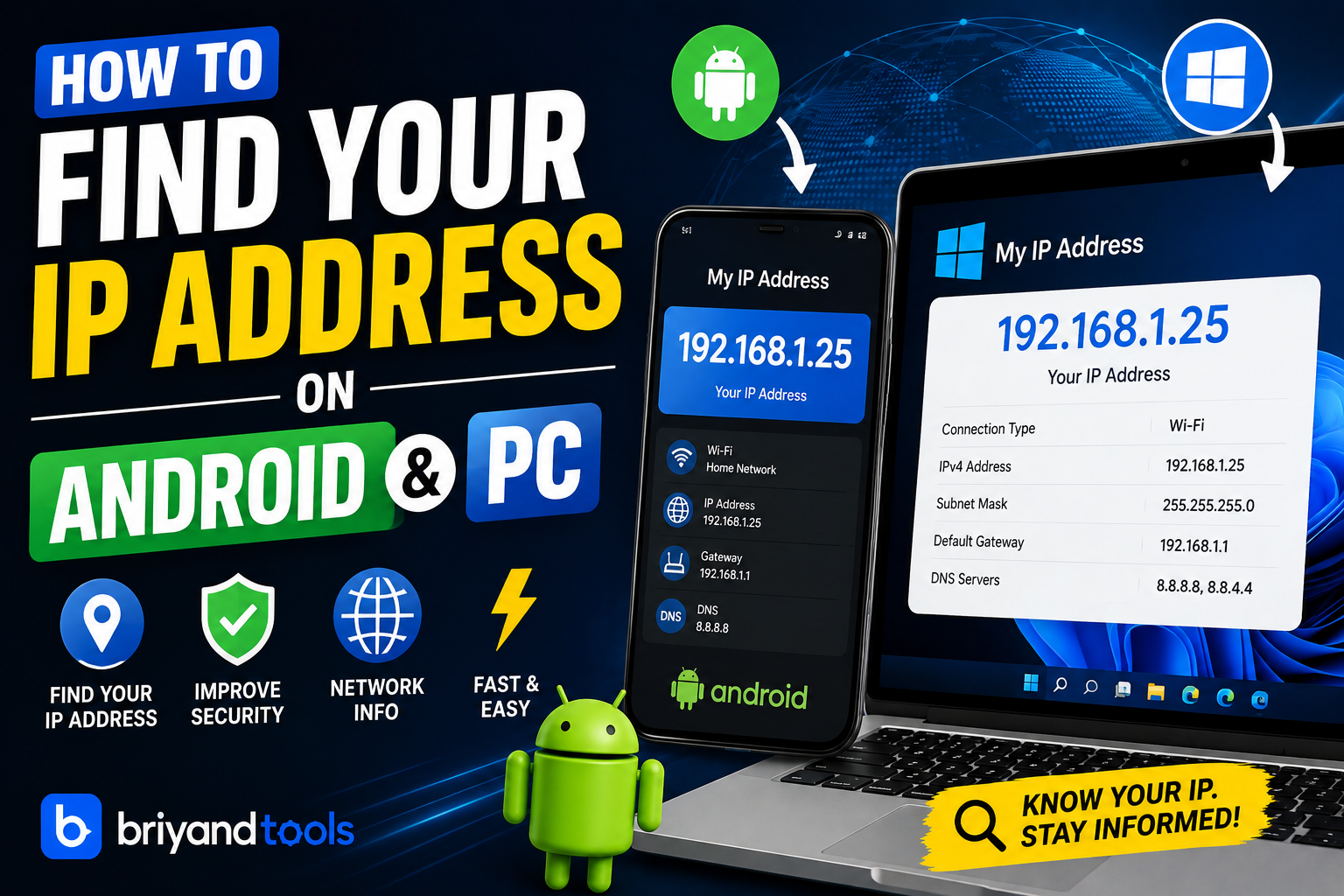
- Look for IPv4 Address under your active connection (it'll usually say "Wireless LAN adapter Wi-Fi" if you're on wireless, or "Ethernet adapter" if you're plugged in).
You'll see something like:
Wireless LAN adapter Wi-Fi:
   IPv4 Address. . . . . . . . . . . : 192.168.1.23
   Subnet Mask . . . . . . . . . . . : 255.255.255.0
   Default Gateway . . . . . . . . . : 192.168.1.1
That "Default Gateway" line, by the way, is your router's local IP address. That's the address you type into your browser when you want to log into your router's admin panel (I use this constantly when I need to change Wi-Fi passwords or set up port forwarding for gaming).
Method 2: Through Windows Settings
If you're not comfortable with Command Prompt, this works just as well.
- Click the Start menu, then go to Settings.
- Click Network & Internet.
- Click on Wi-Fi (or Ethernet if you're wired in).
- Click on your active connection name.
- Scroll down to Properties, and you'll see IPv4 address listed clearly.
I usually show this method to my mom or dad when they call me about their laptop, because it doesn't involve typing anything, just clicking through menus.
Method 3: Quick Taskbar Check
This one's more of a shortcut. Click the Wi-Fi icon in your taskbar (bottom right corner), click on your connected network, then click Properties. Same IPv4 address shows up there too.
Finding Your Public IP on PC
Same trick as Android — search "what is my ip" on Google, or visit whatismyipaddress.com. It's genuinely the fastest method regardless of device, and I don't bother with anything more complicated unless I need extra details like the ISP or hosting provider info, which some of those "IP lookup" tools also give you.
On a Mac, Just So You Know
I use a MacBook for editing videos, so I'll mention this too. Go to System Settings (or System Preferences on older macOS), click Wi-Fi, click Details next to your connected network, and your local IP shows up under the TCP/IP tab. Same concept, different layout.
Real Situations Where Knowing Your IP Actually Matters
I'm not just listing this to fill space — these are things I've genuinely needed my IP address for.
Setting up port forwarding for a Minecraft server. My nephew wanted to host a Minecraft server so his friends could join from outside our house. I had to find the local IP of the PC running the server, log into the router using the gateway IP, and forward the right port to that local IP. If I'd used the wrong IP (like my phone's instead of the PC's), none of his friends would've been able to connect, and that's exactly what happened the first time.
Connecting a smart camera or smart plug manually. Like I mentioned earlier, whenever the automatic app setup fails, you almost always end up needing the local IP.
Troubleshooting a "duplicate IP address" error. This happened to me once when I had a static IP set on my old laptop, then my phone somehow got assigned the exact same one by the router (rare, but it happens with a messy DHCP setup). Windows literally popped up a notification saying there was an IP conflict, and I had to check ipconfig and my router's device list to sort it out.
Checking if a VPN is actually working. I already mentioned ProtonVPN, but the honest way to verify any VPN app is doing its job is checking your public IP before and after connecting. If it doesn't change, or if it shows your real location still, something's wrong.
Remote desktop access. When I help my dad remotely fix something on his PC using Windows Remote Desktop, I need his public IP (or we use a service like TeamViewer, which sidesteps the whole IP thing entirely — more on that below).
Setting up a printer over the network. Older printers especially love asking you to manually input an IP address if the wireless setup wizard gets confused, which happens more often than printer manufacturers would like to admit.
Mistakes I've Made (So You Don't Have To)
Mixing up local and public IP. Already covered this, but it's worth repeating because it's genuinely the single biggest source of confusion. If something asks for an IP and it's a device on your own Wi-Fi, it almost always wants the local one.
Assuming your IP never changes. Most home internet connections use what's called a "dynamic IP," meaning your public IP can change whenever your router restarts or your ISP just decides to reassign it. I once set up a security camera's remote access using my public IP directly, and it stopped working two weeks later because my ISP rotated my IP. That's actually why services like DDNS (Dynamic DNS) exist — a lot of routers (including my old TP-Link) have a built-in No-IP or DynDNS option specifically to deal with this.
Forgetting mobile data uses a completely different IP setup. If you check your phone's IP while on Wi-Fi versus mobile data, you'll get totally different results. Mobile carriers also often use something called CGNAT (Carrier-Grade NAT), meaning your "public" IP on mobile data might actually be shared with hundreds of other phone users on the same tower. This confused me for a while when a public IP lookup showed a location nowhere near where I actually was.
Trusting random "IP lookup" websites blindly. Some throwaway websites that show your IP are stuffed with ads or, worse, sketchy redirect scripts. I stick with well-known ones like whatismyipaddress.com or just Google's built-in result, and I'd recommend you do the same.
Not realizing firewall or antivirus software can block manual IP connections. I spent almost an hour once thinking I had the wrong IP address for a smart plug, when really it was Windows Defender Firewall quietly blocking the local network discovery. Once I allowed it through the firewall settings, the connection worked immediately with the exact same IP I'd been trying the whole time.
A Quick Word on VPNs, Proxies, and "Hiding" Your IP
Since this topic always comes up, I'll mention it briefly. If your goal is privacy rather than troubleshooting, a VPN (I've used ProtonVPN and NordVPN at different points) will mask your public IP address by routing your traffic through their servers instead. This doesn't change your local IP at all — your router still sees your device the same way it always has.
Also worth knowing: hiding your public IP doesn't make your local network invisible to malware or a hacked device already inside your Wi-Fi. Those are two separate layers of security, and people sometimes assume a VPN protects both.
A Few Questions People Actually Ask Me
Since I've helped enough friends and family with this over the years, a handful of questions come up almost every time.
"Why does my IP address look different on my phone than on my laptop, even though they're on the same Wi-Fi?"
Because they're two separate devices, each gets its own local IP from the router. Think of your router like an apartment building — the building itself has one street address (your public IP), but every unit inside still has its own door number (the local IP). Your phone is one door, your laptop is another.
"I checked my IP yesterday and it's different today. Is something wrong?"
Probably not. As I mentioned earlier, most home connections use dynamic IPs, so this is completely normal, especially after a router restart, a power outage, or just your ISP doing routine reassignment on their end. If you genuinely need an IP that stays the same, you'd have to request a static IP from your provider, which sometimes costs extra, or set up DDNS as a workaround.
"Can someone else see my IP just by me visiting their website?"
Yes, technically your public IP is visible to any website or server you connect to — that's just how the internet works, since it needs to know where to send the response back. It's not something to panic over, but it's part of why people use VPNs when they want an extra layer of privacy on top of that.
"Do I need to know my IP address for everyday browsing?"
Not really, no. Ninety-nine percent of daily internet use — browsing, streaming, scrolling — happens without you ever needing to think about your IP. It only really comes up when you're troubleshooting a device, setting something up manually, or dealing with a network issue like the ones I've described above.
If You Just Need a Quick Cheat Sheet
Since I've thrown a lot at you, here's the short version I'd tell a friend over text:
- Android local IP: Settings → Network & internet → Wi-Fi → tap your network → IP address.
- Android public IP: Google "what is my ip" or visit whatismyipaddress.com.
- Windows local IP: Open Command Prompt, type ipconfig, look for IPv4 Address.
- Windows public IP: Same Google search trick, works identically on PC.
- Router's IP (gateway): Shows up right under your local IP in ipconfig, usually something like 192.168.1.1 or 192.168.0.1.
Final Thoughts
Honestly, once you find your IP address the first time on your specific device, it sticks with you. The menus feel unfamiliar the first go-around, but it's genuinely a two-minute task once you know the path.
The bigger skill here isn't memorizing menu locations, it's understanding the difference between your local and public IP, because that's the part that actually determines whether whatever you're trying to set up will work or not. Every mix-up I've had over the years traces back to that one distinction.
If you're setting up a camera, a game server, remote access, or just curious what your ISP has assigned you today, hopefully this saved you the twenty minutes of trial and error it took me to figure it out properly the first time.
Contact
Missing something?
Feel free to request missing tools or give some feedback using our contact form.
Contact Us